The Technical SEO Audit Checklist: What to Check When a Website Is Not Performing
A technical SEO audit checklist helps find website issues. These issues can affect crawling, indexing, usability and organic performance. Check website access, robots.txt, XML sitemaps, index coverage, canonical tags, redirects, broken links, mobile display, structured data, security and Core Web Vitals. Review known issues before the audit. Test them during the audit. Then rank each fix by impact, effort and business value. Use Google Search Console, Google Analytics, a crawler and PageSpeed Insights. Several tools give stronger proof than one tool.
What Should Be Included in a Technical SEO Audit?
Technical SEO checks the parts of a website that affect search engines. It covers crawling, indexing, search visibility and website speed. Each issue should link to affected pages, likely impact, effort and a clear priority.
A technical website audit should cover these areas. The work can change by website type. A service website may need more focus on location and enquiry pages. An ecommerce site may need better control of product filters. A content website may need cleaner archives and fewer wasted crawls.
| Audit area | What to check | Useful evidence |
|---|---|---|
| Crawlability | Access rules, crawl errors and blocked resources | Crawler data, robots.txt and server logs |
| Indexability | Noindex directives, index coverage and canonical signals | Google Search Console and URL Inspection |
| Architecture | URL structure, internal linking and page depth | Website crawler and navigation review |
| Performance | Mobile usability, loading, responsiveness and stability | PageSpeed Insights and real-user data |
| Search enhancements | Structured data, HTTPS and rendering behaviour | Rich-result testing and browser checks |
Also check redirects, canonical tags, XML sitemaps, accessibility and on-page SEO signals. Your CMS, JavaScript setup, hosting and developer process can limit some fixes. Recommendations should show a clear way to make each change.
Before You Start: Prepare the Website Audit
Audit preparation sets the website scope and gathers useful data. It also confirms the access needed for sound findings. Check the preferred domain, key templates, sitemap locations, analytics history, Search Console properties, past migrations and business goals. Do this before crawling the site.
Good preparation cuts down false alarms. It also makes later checks easier. Most small to medium jobs take one to three working days. Large websites and complex platforms can take longer.
This process suits service websites, ecommerce sites and content publishers. It helps the audit focus on pages that matter most.
How Do You Check Whether Robots.txt Is Blocking Google?
Robots.txt blocking happens when a rule stops Googlebot crawling a URL or folder. Open the file at the site root. Review the User-agent and Disallow rules. Test key URLs in Google Search Console’s URL Inspection tool. Check that blocked files don't stop Google rendering or understanding pages.
The file uses the robots exclusion protocol. It controls crawling. It doesn't reliably remove known URLs from search results. A Disallow rule can block CSS, JavaScript or image files. Google may need these files to render a page.
First, open the robots.txt file in a browser. Then check rules for Googlebot. Compare those rules with crawler results. Use URL Inspection in Google Search Console to test key pages. Request a live test when needed.
Check wildcard patterns with care. One broad rule can block product, service or article folders. The issue may not be easy to spot. Check the file on both HTTP and HTTPS. Also check firewall and hosting rules.
Don't treat a crawler warning as final proof. Compare it with server responses, Search Console data and page tests.
During the Audit: Check Indexing, Links and Canonicals
Indexing checks show if search engines can find and keep valuable pages. Compare indexed URLs with the crawl. Check Search Console index coverage. Test canonical signals. Find broken internal links. Review HTTP status codes. Trace redirects. These checks reveal excluded, duplicate or hard-to-find pages.
To check if your website is indexed, test key URLs in Google Search Console’s URL Inspection tool. Review each indexed status. Search operators offer a rough view. They aren't a full index report. Compare the results with analytics pages, XML sitemaps and crawler data.
A canonical URL is the preferred version of a similar page. It doesn't guarantee indexing. Canonical tags, redirects, sitemaps and internal links should support the same choice. Compare the source URL, destination, status code and preferred URL. This helps find broken links and canonical errors.
Record the URL type, organic risk, effort and test method. A key enquiry page with a wrong canonical may need urgent work. A low-value archive page may wait.
What Are the Most Common Technical SEO Issues?
Common technical issues include blocked crawling, unwanted noindex rules, weak internal links, duplicate URLs and wrong canonicals. They also include redirect chains, broken pages, slow templates, mobile display faults, missing structured data and JavaScript content that search engines can't process well. Check every issue against affected URLs and search visibility.
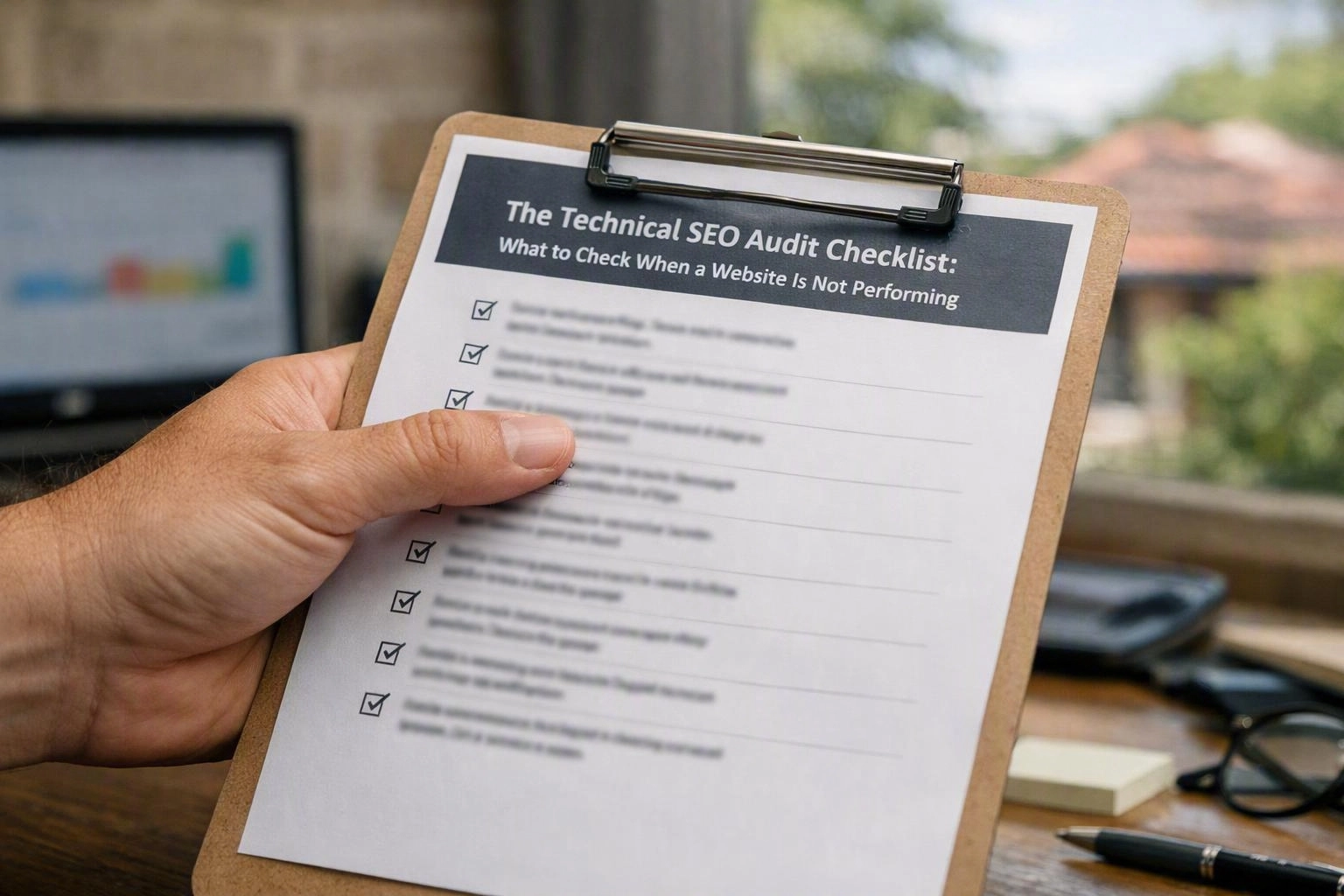
Crawl errors often come from old campaigns, deleted products or changed URLs. A soft 404 returns a successful server response. Yet the page may be empty or unavailable. Check the content, status and user path.
Mobile issues can include clipped content, small controls, pop-ups and poor layouts. Test real templates. Don't test only the home page. Ecommerce sites need product, category, filter and checkout checks. Service websites need enquiry, location and service page checks.
Structured data should describe visible and correct content. It must follow search guidelines. JavaScript needs care when scripts add key text, links or products. A crawler may see less than a browser. Google may read the page differently.
Our work starts with evidence. We compare crawler data, server responses, Search Console, rendered pages and real-user performance. Technical SEO in South Brisbane, or elsewhere, should fit the CMS, hosting and developer process. It shouldn't rely on a generic warning list.
After the Audit: Prioritise and Validate the Fixes
Post-audit action turns findings into clear website changes. Group related issues. Start with pages that affect sales or search visibility. Assign owners. Set clear checks. Test changes safely. Then re-crawl the website. Confirm that fixes solved the first issue and caused no new ones.
A clear task list beats a long report. An SEO Agency can explain findings to developers, marketers and business owners. The final order should reflect risk, effort and business value.
Validation should confirm the fix and check for side effects. Keep before-and-after exports, screenshots and server data. These records help future audits show what changed.
Technical SEO Red Flags That Need Immediate Investigation
Technical SEO red flags include blocked key pages, widespread noindex rules, server errors and wrong canonical URLs. They also include sudden index changes, broken navigation and failing Core Web Vitals. Check these signs quickly. They can stop search engines finding, indexing or showing important pages.
Check if the issue affects many pages or one small group. A warning from one tool needs checking. It isn't proof of a ranking issue.
How Do Core Web Vitals Affect SEO?
Core Web Vitals measure loading, response time and page movement. They use Largest Contentful Paint, Interaction to Next Paint and Cumulative Layout Shift. These measures support page experience checks. They can affect search performance at page level. Useful content and strong relevance still matter. Test both field and lab data before choosing fixes.
Largest Contentful Paint shows how fast the main content loads. Interaction to Next Paint shows how fast the page responds. Cumulative Layout Shift measures unexpected movement. Together, these measures cover key parts of mobile performance.
Use PageSpeed Insights for lab tests and field data. Compare the results with browser tools and real-user monitoring. Field data shows real devices and connections. Lab data helps find causes during development.
Common fixes include smaller images, faster server replies and fewer heavy scripts. You can also remove files that delay display. Reserve space for images and video. The best fix depends on the template, CMS, JavaScript and hosting.
Core Web Vitals don't replace useful content, clear links or easy navigation. They also don't replace sound indexability. Treat the test as one part of website performance work. Test again after launch.
Questions About SEO Agency
How Long Does a Technical SEO Audit Take?
Most small to medium websites take one to three working days. This covers the first crawl, checks and recommendations. Larger websites, complex ecommerce sites, migrations and JavaScript-heavy platforms can take longer.
What Tools Do I Need for a Technical SEO Audit?
Useful tools include Google Search Console, Google Analytics, a website crawler, XML sitemap exports, server data and PageSpeed Insights. Use Google Search Console for crawl, index and performance data. Use Google Analytics for landing pages and conversions. Use a crawler for URL and link checks. Several sources give better proof than one report.
How Often Should a Website Have a Technical SEO Audit?
A full review is often useful once or twice each year. Run smaller checks after migrations, platform changes and major template releases. Also check the site after sharp traffic or index changes. Busy ecommerce and publishing websites may need more regular checks.
Can a Technical SEO Audit Improve Rankings?
It can help rankings when technical issues block valuable pages. These issues may stop crawling, indexing or page use. An audit can't promise a ranking change. Relevance, content quality, competition, authority and user needs also matter.
What Is the Difference Between a Technical SEO Audit and an On-Page SEO Audit?
A technical audit checks crawling, indexing, structure, redirects, status codes, rendering, security and speed. An on-page SEO audit checks visible content, headings, search intent, titles, copy and topic coverage. Both can cover internal links, structured data and page templates.
Our team can review your website’s technical health. We can turn the findings into a clear task list. Contact our team to discuss the next step.
Get a Free EstimateRelated Resources
How Much Does SEO Cost in Brisbane?
SEO agency Brisbane cost
What It CostsHow Much Does Ecommerce SEO Cost in Australia?
ecommerce SEO agency cost
What It CostsEnterprise SEO Costs in Australia: What Large Websites Need
enterprise SEO agency cost
How It WorksHow Long Does SEO Take to Work? A Practical Agency Timeline
how long does SEO take to work